Practical steps drawn from JetBrains’ installation documentation — Toolbox, standalone Windows install, checksums, and first project.
Install PyCharm on Windows
PyCharm installs the same way across Windows, macOS, and Linux. On Windows you can use the Toolbox App (recommended) or the standalone .exe.
Download
Get the Toolbox installer or the PyCharm Windows installer from the download page / jetbrains.com.
Run the installer
Follow the wizard. Useful options include the 64-bit launcher, “Open Folder as Project”, .py file association, and adding the launchers directory to PATH.
Launch
Start PyCharm from the Start menu or desktop shortcut. First-run screens help you customize the instance.
TIP
JetBrains Runtime is bundled (based on 21). You do not need a separate Java install to run PyCharm.
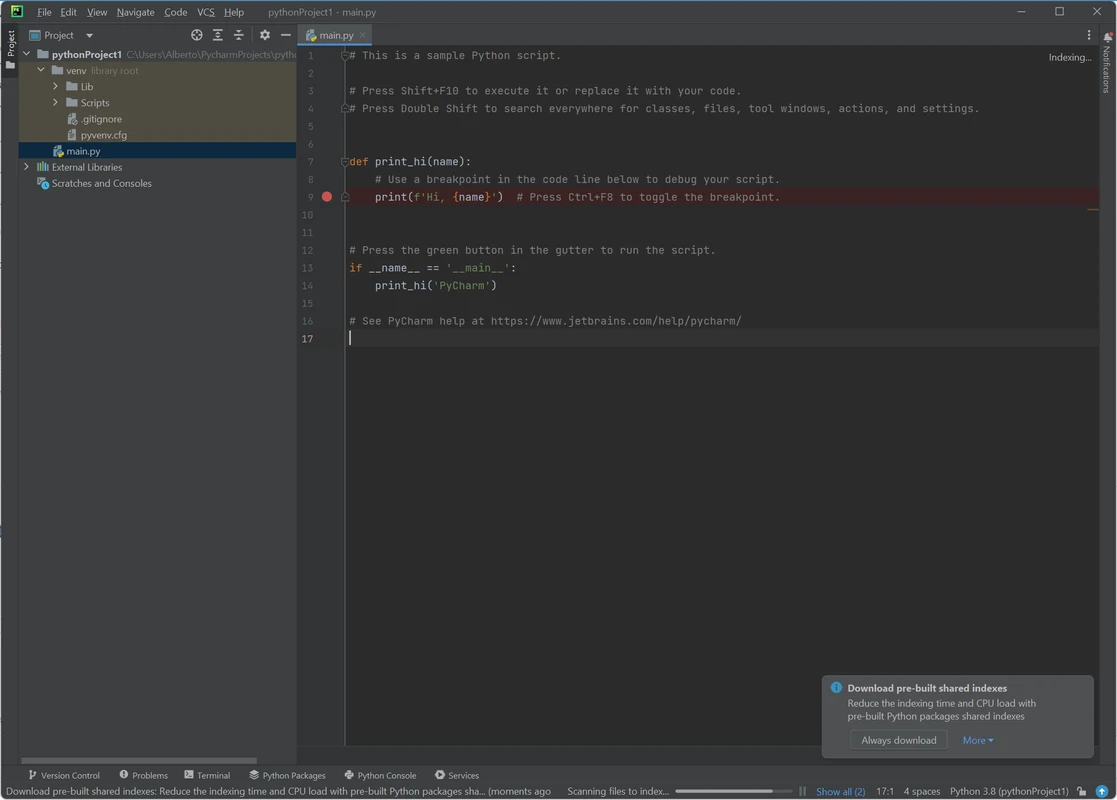
Editor — first project
Verify the download
Before you run any installer, use the SHA checksum linked from the official download page. Hash the local file and confirm it matches JetBrains’ published digest.
WARNING
Skip unofficial mirrors. Altered installers are the most common supply-chain risk for desktop IDEs.
On a fresh install you receive access to core features for free, plus a 30-day Pro trial for advanced functionality. After the trial you can subscribe to Pro or continue with core features only.
INFO
Existing PyCharm Professional licenses continue to unlock Pro features — no migration step is required for current subscribers.
Create a new project or open an existing folder
Clone from VCS if your team already hosts the repo
Confirm the Python interpreter in the status bar
Choose a Python interpreter
PyCharm supports Python 2.7 and Python 3.9 through 3.15. Prefer a project virtual environment (venv, Poetry, uv, or conda) so dependencies stay isolated. From 2026.2 onward the IDE avoids creating venvs for end-of-life 2.7 / 3.6 / 3.7 — you can still attach an existing env manually.
Update via Toolbox or in-product
Stable 2026.2.1 builds are available through the IDE updater, the Toolbox App, or a fresh download. Toolbox is the recommended path when you juggle multiple JetBrains tools or need rollbacks.
 PyCharm